
How to Convert Publisher Files to PDF for Free
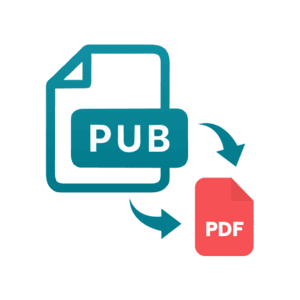
Microsoft Publisher (.pub) is a classic graphic design and desktop publishing application widely used for creating brochures, newsletters, flyers, posters, and business cards. While Publisher provides fantastic design flexibility, sharing .pub files can quickly become a major headache. Because Microsoft Publisher is exclusive to Windows and is not included in every Microsoft 365 package, most of your recipients won't be able to open or view PUB files on their devices—especially if they are using a Mac, Linux, iPhone, or Android device.
To make matters worse, opening a PUB file on a different computer often leads to missing fonts, shifted layouts, and corrupted design elements. The easiest solution to this universal compatibility issue is converting your file to Portable Document Format (PDF).
In this comprehensive guide, we will walk you through multiple simple, fast, and 100% free methods on how to convert Publisher files to PDF for free without losing formatting or visual quality.

Why You Should Convert PUB Files to PDF
Before diving into the steps, let's look at why converting your Microsoft Publisher documents to PDF format is an essential best practice:
- Universal Accessibility: PDFs can be opened on virtually any device, including Windows PCs, Macs, Chromebooks, smartphones, and tablets, without requiring dedicated software.
- Preserves Visual Integrity: Fonts, vectors, layout structures, and graphic alignments remain exactly as you designed them, regardless of where the file is viewed.
- Print-Ready Reliability: Printing service providers universally prefer PDF files because they embed color profiles, resolution settings, and embedded fonts accurately.
- Enhanced Security: PDFs can easily be password-protected, watermarked, or set to read-only to prevent unauthorized editing or copying.
Method 1: Convert PUB to PDF Online for Free (Fastest & Easiest)
If you don't have Microsoft Publisher installed on your computer—or if you are working on a Mac or mobile device—using a reliable online file converter is the best choice. It requires no software download and takes only a few seconds.

Step-by-Step Guide for Online Conversion:
- Open Your Browser: Navigate to a secure online conversion tool such as ConvertlyFiles.
- Upload Your PUB File: Click on the upload button or simply drag and drop your Microsoft Publisher (
.pub) file into the designated upload area. - Select PDF as Target Format: Ensure the output format is set to PDF.
- Click Convert: Start the conversion process. The cloud server processes the document layout, embeds fonts, and formats the images.
- Download Your PDF: Once finished, click the download link to save your newly created PDF file straight to your local storage.
Pro-Tip: Using an online conversion service eliminates operating system limitations, making it the ideal choice for Apple Mac users who receive Microsoft Publisher files.
Method 2: Convert Using Microsoft Publisher Directly
If you already have Microsoft Publisher installed on your Windows system, you can convert your project into a PDF directly within the application using built-in features.
Option A: Use 'Save As'
- Launch Microsoft Publisher and open your
.pubdocument. - Click on the File tab in the top-left menu bar.
- Select Save As from the sidebar and choose your preferred destination folder.
- In the Save as type drop-down menu, choose PDF (*.pdf).
- Click Save to export your design.
Option B: Export as PDF/XPS Document
- With your file open in Publisher, navigate to File > Export.
- Select Create PDF/XPS Document.
- Choose your optimization settings:
- Standard: Best for high-quality printing and detailed graphics.
- Minimum Size: Ideal for emailing or publishing on websites.
- Click Publish to create your PDF file.
Method 3: Convert PUB Files to PDF Using LibreOffice (Free Open Source)
If you are looking for a completely free, open-source desktop software solution that works offline, LibreOffice is an outstanding tool. LibreOffice Draw natively supports opening Microsoft Publisher files and allows seamless PDF export.

How to Use LibreOffice Draw:
- Download and install LibreOffice (available for Windows, Mac, and Linux) from its official website.
- Open LibreOffice Draw.
- Go to File > Open and select your
.pubfile. - Review the opened document to ensure all graphics and text frames rendered properly.
- Go to File > Export As > Export as PDF.
- Adjust PDF settings if needed (such as DPI quality or compression levels), then click Export.
Method 4: Use the 'Print to PDF' Feature
Windows 10 and Windows 11 include a native virtual printer called Microsoft Print to PDF. If you have Publisher or a compatible viewer, you can convert your document using the print menu.
- Open your Publisher document in Microsoft Publisher or another compatible viewer.
- Press
Ctrl + Pto open the Print menu. - Under the Printer dropdown selection, choose Microsoft Print to PDF.
- Click Print.
- A prompt will appear asking where to save the generated PDF. Select your destination, enter a file name, and click Save.
Best Practices for Perfect PUB to PDF Conversions
To ensure your converted PDF document looks flawless and ready for production or distribution, keep these helpful tips in mind:
- Check Image Resolution: High-resolution graphics in Publisher retain crispness during conversion. Ensure your images are at least 300 DPI for print, or 72–150 DPI for web use.
- Verify Font Licensing & Embedding: Standard fonts convert smoothly. If you use custom or rare typography, ensure font embedding is enabled or export using standard cloud conversion tools to avoid unwanted font substitution.
- Review Page Margins and Bleeds: If you are preparing files for commercial printing, ensure your document margins and bleed marks are preserved when converting via online converters or print settings.
- Double-Check Proofing: Always open and inspect your final PDF before sending it to clients, printing, or sending it out via email newsletters.
Frequently Asked Questions (FAQs)
Can I convert a Publisher file to PDF without Microsoft Publisher?
Yes! You can easily convert PUB files without Microsoft Publisher by using free online converters like ConvertlyFiles or open-source software like LibreOffice Draw.
Is it safe to convert private Publisher documents online?
Most reputable online conversion tools utilize SSL encryption during file transfer and automatically delete uploaded files from their servers after a short period. For maximum privacy, always choose trusted online conversion tools.
How do I open a .pub file on a Mac?
Since Microsoft Publisher is not available on macOS, the easiest way to open a .pub file on a Mac is to convert it to a PDF online using your browser. Once converted, you can open and edit the PDF using Preview or any PDF reader.
Will converting PUB to PDF ruin my document layout?
No. Converting to PDF preserves layout geometry, line wrapping, font placements, and image positioning perfectly across all viewing platforms.
Conclusion
Learning how to convert Publisher files to PDF for free is a fundamental digital skill that saves time, prevents formatting mistakes, and ensures seamless document sharing across any device or operating system. Whether you use a quick online tool like ConvertlyFiles, built-in features in Microsoft Publisher, or open-source programs like LibreOffice, converting your PUB files to PDF takes just a few clicks. Try converting your PUB document today and enjoy stress-free file sharing!












Comments
Post a Comment