
How to Convert HEIC to JPG on Windows 11 (Free & Easy Methods)
If you recently transferred photos from your iPhone to your Windows PC and discovered files ending in .HEIC, you are not alone.
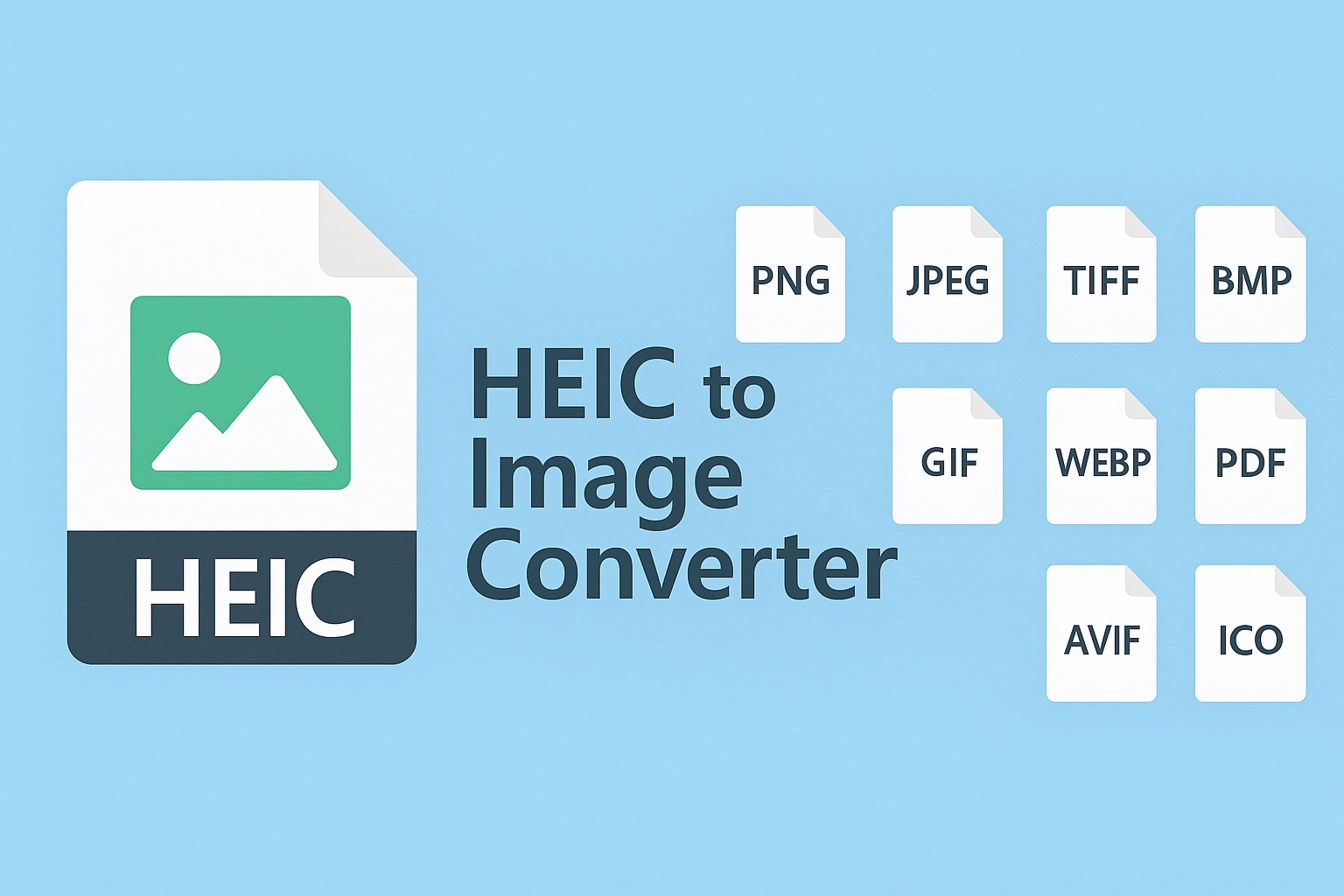 |
| heic to jpg,gif,png |
Many Windows users struggle to open HEIC photos because Microsoft Windows does not fully support Apple’s HEIC image format by default. Instead of opening normally, users often see errors, blank previews, or unsupported file messages.
The good news is that converting HEIC to JPG on Windows 11 is actually simple and completely free.
In this guide, you will learn:
- What HEIC files are
- Why Windows cannot open them properly
- The best ways to convert HEIC to JPG
- How to avoid HEIC problems permanently
What Is a HEIC File?
HEIC stands for High Efficiency Image Container.
Apple introduced this format to:
- Reduce image file size
- Save iPhone storage space
- Maintain high image quality
While HEIC works perfectly on Apple devices like iPhones and Macs, compatibility on Windows PCs is still limited.
That is why many users search for:
- “Why won’t my iPhone photos open on Windows?”
- “How to convert HEIC to JPG?”
- “Best free HEIC converter”
Why HEIC Files Don’t Open on Windows 11
Windows 11 can sometimes read HEIC files, but support depends on:
- Installed codecs
- Windows version
- Microsoft Store extensions
Without proper extensions, HEIC images may:
- Fail to open
- Appear blank
- Display an unsupported format error
This happens because HEIC uses advanced compression technology that Windows does not fully include by default.
Method 1: Use a Free Online HEIC to JPG Converter
The easiest method is using a browser-based converter.
A reliable option is:
Convertly Files HEIC Converter
Benefits:
- No software installation
- Fast conversion
- Works on any browser
- Keeps image quality
- Simple drag-and-drop interface
Steps
- Open the converter tool
- Upload your HEIC image
- Click Convert
- Download the JPG version
This method is ideal for users who need quick conversions without installing additional apps.
Method 2: Install Microsoft HEIF Extensions
Microsoft provides an official extension for HEIC support.
Steps
- Right-click your HEIC file
- Select Open With → Photos
- Windows may prompt you to install:
- HEIF Image Extensions
- Install the extension from Microsoft Store
- Reopen the image
After installation, some HEIC files can open directly inside Windows Photos.
However, many users still prefer JPG because it works universally across:
- Websites
- Editing software
- Older PCs
- Printers
- Sharing apps
Method 3: Automatically Convert iPhone Photos to JPG
You can stop HEIC problems permanently by changing one iPhone setting.
Steps
- Open Settings
- Go to Camera
- Tap Formats
- Select Most Compatible
Your iPhone will now save photos directly as JPG instead of HEIC.
This is the best option for users who frequently transfer photos to Windows PCs.
HEIC vs JPG: Which Is Better?
| Feature | HEIC | JPG |
|---|---|---|
| File Size | Smaller | Larger |
| Compatibility | Limited | Universal |
| Windows Support | Partial | Full |
| Web Uploads | Sometimes unsupported | Fully supported |
| Editing Software | Limited | Works everywhere |
For most Windows users, JPG remains the safer and more compatible format.
Best Free HEIC to JPG Converter for Windows
When choosing a converter, look for:
- No watermark
- Fast conversion
- Privacy protection
- Quality preservation
- Batch conversion support
Many online tools compress images too aggressively or upload files to unsafe servers.
That is why lightweight browser tools like Convertly Files are becoming increasingly popular.
Frequently Asked Questions
Can Windows 11 open HEIC files?
Yes, but usually only after installing Microsoft HEIF extensions.
Does converting HEIC to JPG reduce quality?
Most modern converters preserve nearly all visible quality differences.
Is HEIC better than JPG?
HEIC is more storage-efficient, but JPG offers much better compatibility.
Can I batch convert HEIC files?
Yes. Many HEIC converters support converting multiple files at once.
Is online HEIC conversion safe?
Use trusted websites only. Avoid suspicious converters that store uploaded files permanently.
Final Thoughts
HEIC files are useful for saving iPhone storage space, but they can create frustrating compatibility problems on Windows PCs.
Fortunately, converting HEIC to JPG is quick and easy using:
- Free online tools
- Microsoft extensions
- Simple iPhone settings
If you regularly work with iPhone images on Windows, switching to JPG will save time and avoid future issues.
For more free file conversion and troubleshooting tools, visit:

















Comments
Post a Comment